
[ultimatemember form_id=3702]
Discount Schedules
Use discount schedules to create volume discounts based on quantity or terms for your quote lines. Set the quantity or term ranges in tiers of percentages or amounts of currency.
Discount schedules provide tier-driven discounts to the list price of your quote lines. For example, you can sell routers for $25 each, but apply the following discounts based on how many routers a customer buys. In this case, you create a discount schedule with three tiers.
- Tier 1: 10% discount for 1–9 products
- Tier 2: 20% discount for 10–19 products
- Tier 3: 30% discount for 20+ products
Use the Type field to determine how Salesforce CPQ applies the discount.
Range: Products are discounted at the rate of whatever tier applies to the quoted quantity. Let’s say you ordered 30 products under the discount schedule in the first two paragraphs. All 30 units receive a 30% discount. Only range-type discount schedules can be term discount schedules.
Slab: Units within a certain bound receive discounts equal to their tier’s discount value. Let’s say you ordered 30 products under the discount schedule in the first two paragraphs. Units 1 through 9 receive a 10% discount, units 10 through 19 receive a 20% discount, and units 20 through 30 receive a 30% discount. Slab discount products aren’t allowed on partial orders.
The Discount Unit field defines the type of discount applied to your quote line:
Percent: Applies the discount as a percentage of your quote line’s list price.
Amount: Applies the discount as an amount taken off of your quote line’s list price. This value is useful when you want to arrive at an exact discounted price without calculating discount percentages that could contain many decimals.

Discount Tiers
A discount tier represents a single discount level for your discount schedule. For example, 1 through 10 products receive a 10% discount. You can create a tier in your discount schedule’s Discount Tiers related list.
The Lower Bound value is the smallest value needed for the discount. The Upper Bound value is the highest value needed for the discount. However, the Upper Bound value isn’t inclusive. Make sure that your upper bound is one digit higher than the value you want to include. For example, if you want your tier to include values 1 through 10, set your Upper Bound value to 11.
If you select the Allow Override field on your discount schedule record, sales reps can edit Discount Tier fields within the quote line editor.
Edit Discount Schedules in the Quote Line Editor
When you’re negotiating prices with a customer, you can change the range of discounts in your discount schedule. Use the quote line editor to change discount schedule tiers, bounds, units, and discount values.
To edit discount schedules in the quote line editor, your Salesforce admin must define a value for the discount schedule’s Override Behavior field.
If you can’t create or change discount schedules, ask your Salesforce admin to enable your permissions for the discount schedule and discount tier objects.
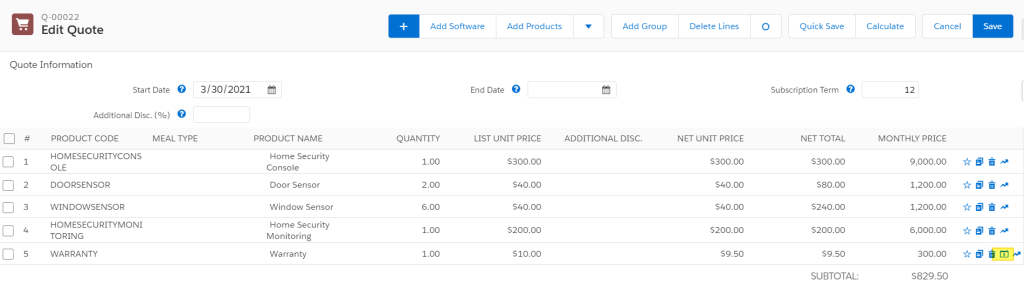
- Click the discount schedule icon on your quote line.
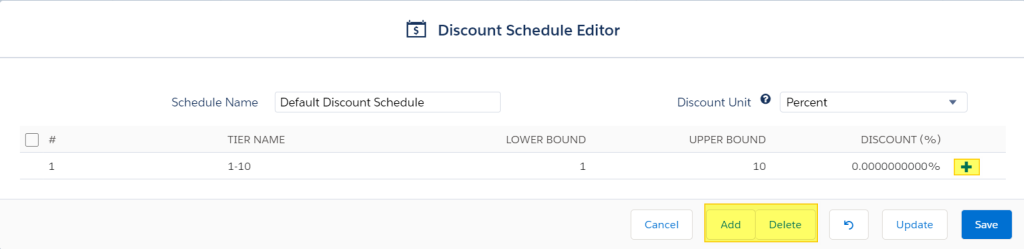
Salesforce CPQ displays the Discount Schedule Editor page.
- If your admin set the discount schedule’s override behavior to Current Tier Only, you can edit only the following fields on the tier that currently covers your quote line.
- Name
- Lower Bound
- Upper Bound
- Discount (%)
- If your admin set the discount schedule’s override behavior to All, you can edit fields on every tier and also perform the following actions.
- Click + to add a tier below the current discount tier.
- Click Add to add a tier after the discount schedule’s last tier.
- Select the delete tier icon to remove a discount tier.
- Select several tiers and then click Delete to delete all those tiers
- If you want to delete all your schedule’s tiers, select the checkbox next to the # header and then click Delete. Salesforce CPQ requires at least one tier for a discount schedule to take effect, so you cannot delete the first tier.
When you save in the quote line editor, Salesforce CPQ creates quote lines after the save action. Therefore, if you add a product with a discount schedule, edit the discount schedule, then save the quote, Salesforce CPQ doesn’t populate the discount schedule’s Quote Line field. If you want the discount schedule’s Quote Line field to populate consistently, add your product first, save the quote, and then edit the discount schedule.
Allow Users to Edit Discount Schedules in the Quote Line Editor
You can let your sales reps edit discount schedule tiers, bounds, units, and discount values from within the quote line editor. This feature is useful if you want to give sales reps greater control over creating or managing discount schedules.
To create and edit custom discount schedules, sales reps require create, read, edit, and delete permissions on the discount schedule and discount tier objects.
- Go to a discount schedule record.
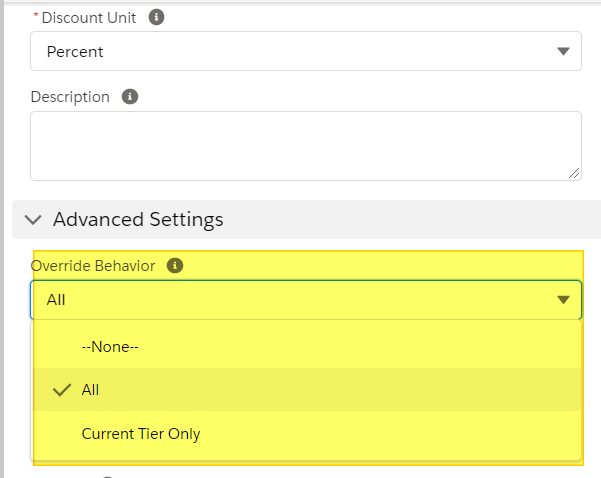
- Set the Override Behavior field to one of the following values.
- All: Sales reps can edit all this discount schedule’s tiers.
- Current Tier Only: Sales reps can edit only the pricing tier that the quote line currently falls within
Discount schedule fields allow you to customize the scope and discount value of your discount schedule. With certain page layout and field-level security settings, some fields aren’t visible or editable.
Discount Schedule Fields
Account
If a sales rep created a discount schedule in the quote line editor, the Account field looks up to that quote’s account.
Allow Override
Sales reps can copy the discount schedule and adjust its tiers in the quote line editor.
Aggregation Scope
Define how to combine quantities of quote lines for products using this discount schedule.
Quote: Combine line items in the quote.
Group: Combine line items in the group. Discount schedules using cross orders or cross products require a Group aggregation scope.
None: The schedule evaluates each line item independently, even for the same product. This is the default setting.
Constraint Field
If you’re using cross-order discount schedules, limit the records Salesforce CPQ considers to records with matching fields. The field must exist on both the quote line being evaluated and the subscriptions and assets the discount schedule evaluates against. The constraint field can’t be a formula field. This feature doesn’t work with amendments, as amendments don’t look up to other orders.
Cross Orders
Discount schedules will include previously purchased quantities of a line item for a given customer. For example, if a customer already bought 5 laptops, and the current quote for this customer contains 10 laptops, Salesforce CPQ uses a quantity value of 15 when evaluating the current quote line against volume discount tiers. Salesforce CPQ evaluates this field only on primary quotes. Subscriptions or assets from expired or inactive contracts aren’t included in quantity calculation for a quote line with a cross-order discount schedule.
Cross Products
This discount schedule combines the quantities of all products on the quote when evaluating line quantity against volume discount tiers.
Description
Enter a brief description so sales reps know the purpose of this discount schedule.
Discount Unit
Choose whether this discount schedule applies discounts as a percentage or as a static amount.
Excluded Pricebook IDs
This discount schedule does not apply discounts to products in the selected pricebook.
Include Bundled Quantities
When the discount schedule evaluates a bundle product, include the quantities of the bundle’s product options in the aggregation scope.
Price Book
Apply this discount schedule to only a product from this price book. Define the product in the discount schedule’s Product field.
Product
Apply this discount schedule to only this product, from the price book defined in the discount schedule’s Price Book field.
Quote
The quote containing a quote line with this discount schedule.
Quote Line
The discount schedule applies to this quote line. Salesforce CPQ uses this field to track the related quote line only when sales reps can edit the line’s discount schedule while the Override Behavior field is Current Tier Only or All. Otherwise, the discount schedule still applies to the quote line, but this field doesn’t show a value. Salesforce CPQ assigns this field a quote line lookup only after sales reps add a product and save the quote, then edit the quote line’s discount schedule or add a new discount schedule, and then save the quote again.
Override Behavior
Defines whether sales reps can edit this discount schedule’s discount tiers in the quote line editor.
Schedule Name
We recommend giving your discount schedule a name that makes it easy to tell apart from your other discount schedules.
Type
Choose how this discount schedule applies its discounts to a quote line’s price.
Range: Products are discounted at the rate of whatever tier applies to the quoted quantity. Let’s say you ordered 30 products under the discount schedule in the first two paragraphs. All 30 units receive a 30% discount.
Slab: Units within a certain bound receive discounts equal to their tier’s discount value. Let’s say you ordered 30 products under the discount schedule in the first two paragraphs. Units 1 through 9 receive a 10% discount, units 10 through 19 receive a 20% discount, and units 20 through 30 receive a 30% discount. Slab discount products are not allowed on partial orders.
Discount Tier Fields
Currency
Salesforce CPQ supports currency values on discount tiers only in multi-currency orgs and only for price-based discount schedules.
Discount
Enter the percentage or amount to apply to products with quote line ranges that fall within this tier.
Lower Bound
Enter the smallest quantity to include within this tier.
Name
We recommend giving your discount tier a descriptive name.
Upper Bound
Enter the largest quantity to include within this tier. This value is not inclusive, so make sure your upper bound is one digit higher than what you actually want to include. For example, if you want your tier to include units of 5 through 10, set the upper bound to 11.